
How to loop a video on Zoom
Published 6 November 2026. Last updated 6 November 2026.
To loop a video of yourself on Zoom, turn on Loop for a Media Source in OBS Studio and send it through its virtual camera, or add a Zoom App such as Poof, which we make and which needs nothing downloaded. We couldn't find a loop button in Zoom itself, and its help pages don't promise that video backgrounds or shared videos repeat.
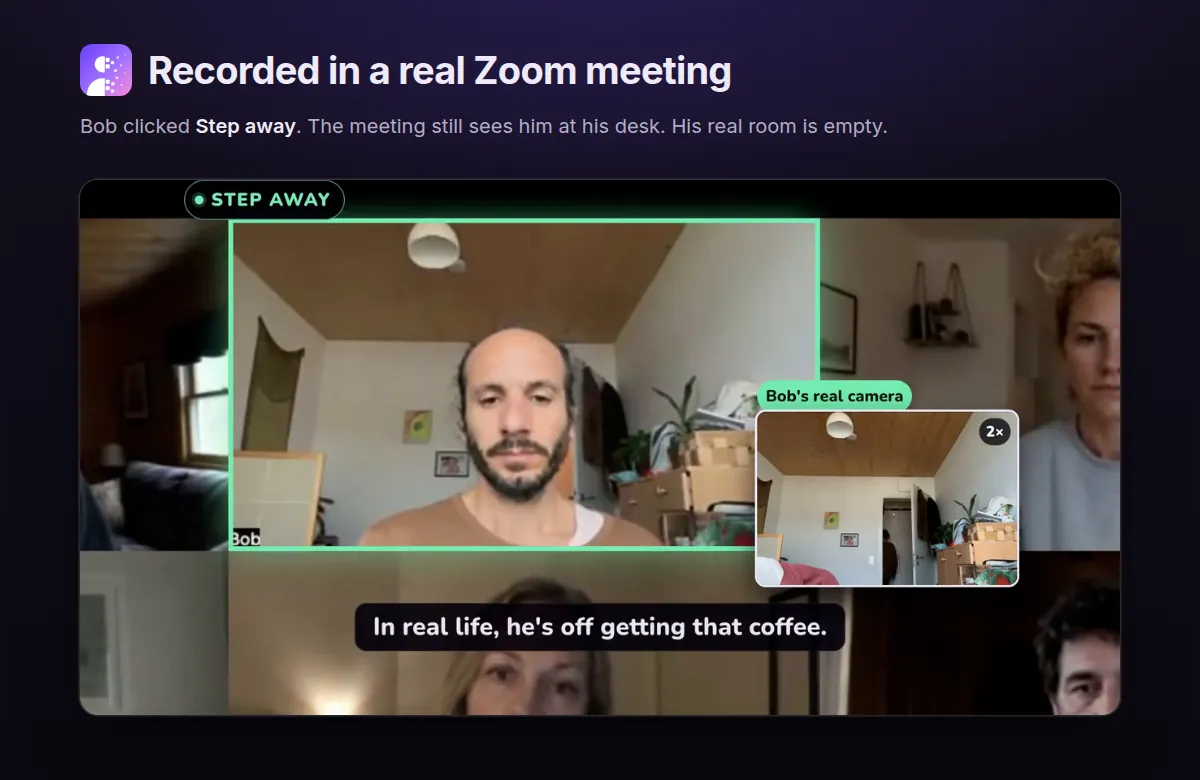
First, which loop do you want?
| You want to | Use |
|---|---|
| Loop yourself while you step out for a moment | OBS Studio or Poof |
| Loop a video for others to watch | Screen sharing |
| Have a moving background behind you | A video virtual background |
Loop yourself with OBS Studio
This is the free route. It takes some setup, and OBS has to stay open while you use it.
- Record a short clip of yourself, sitting as you normally do, with small movements only.
- Download OBS Studio. It lists Windows 10 and 11, and macOS 13 and newer.
- Add a Media Source, pick your clip and turn on Loop, which is off by default.
- Click Start Virtual Camera in the Controls dock.
- On a Mac, allow the system extension when asked, then restart OBS.
- In Zoom, go to Settings, then Video, and choose OBS Virtual Camera. Neither Zoom's nor OBS's documentation covers this step, but it's what users describe. Start OBS first, and restart Zoom if it isn't listed.
Your microphone isn't part of this: the virtual camera carries video only, so you're still live unless you mute. To go back, choose your real camera again in the same menu.
Some Mac users report that Zoom doesn't list the camera. Reported fixes include updating to OBS 30 or newer. Some older forum posts suggest removing Zoom's code signature. We wouldn't do that to an app you use for calls.
Loop yourself with Poof, with nothing to download
Poof runs inside Zoom, so there's no editing and no desktop software.
- Add Poof from the Zoom App Marketplace. If your Zoom account is managed by an organization, your admin may need to allow it first.
- Join a meeting with your camera on, click Apps and choose Poof. Allow Camera Mode when Zoom asks.
- Capture the empty room, then record a 10, 15 or 30 second stand-in in your normal browser.
- Click Step away when you need to go, and I'm back when you return.
The user guide has the details, and the privacy policy explains how your clip is encrypted and deleted within 24 hours.
Poof isn't for everyone. It only works in Zoom's desktop client on macOS and Windows, so if you need a loop in Teams or Meet, a virtual camera app is the better fit. We compare them in how to freeze your camera on Zoom.
Skip the editing. Record your clip once and Poof loops it in the call.
Add to ZoomFree. Nothing to download. No account. Zoom desktop on macOS and Windows.
The jump when the clip restarts
A plain loop has one flaw: when the clip ends, you snap back to where you were at the start. A few things reduce it:
- Hold still. Lifehacker's guide and forum users agree on small movements only.
- Trim the ends. Zoom recordings can start with black frames, so cut them.
- Crossfade. FluxNote suggests about half a second over the loop point, with matching light and position at both ends.
- Play it forwards, then backwards. Duplicate the clip, reverse the copy and join them. The end always meets the start.
Poof does the last one for you, then lines the clip up with your room and matches its colours.
The webcam tape trick from 2020
Older guides, including Lifehacker's, have you record yourself in Zoom, upload that as a virtual background and put tape over your webcam. We don't recommend it. You have to cover your camera, the menus have changed since, and a video background may not repeat at all (see below).
Loop a video you're sharing
Zoom can share a video file under Share, then Advanced, then Video file, using H.264 in MOV or MP4. The page doesn't mention looping, and a question about it on Zoom's community has no replies.
What we'd try: play the video on repeat in any video player, share that window, and turn on Share Sound if it has audio. We haven't tested this in every setup, so run it before the meeting.
Loop a video background
Zoom lets you upload a video as a virtual background under Settings, then Video & effects, then Virtual backgrounds. Its help page doesn't say whether the video repeats, and one user reports theirs stopping on the last frame. Test yours in a practice meeting first.
Before you step away
- Say so in the chat. "Back in five" takes two seconds, and for anything longer than a coffee run it's the polite move.
- Mute yourself. A freeze or a loop changes your video, not your audio. Your microphone stays live unless you mute it. Poof can do this for you with Mute me while I'm away, and offers to unmute you when you're back.
- Keep it short. Your stand-in can't answer a question, of course.
When not to use this
Don't use Step away or Vanish where you're required to be present and visible: exams, assessments, identity checks, court or official hearings, or anywhere an employer or organizer requires your live attendance. The same goes for a one-on-one, or any meeting where people are counting on you to answer. Turn your camera off, say you'll be back, and let them see that you've stepped out. See the terms.
Questions
How do you loop your video on Zoom?
Either send a looping clip through OBS Studio's virtual camera, or use a Zoom App like Poof. OBS is free and takes setup. Poof is free and needs nothing downloaded, but it only works in Zoom.
Can you freeze yourself on Zoom?
Not with a Zoom button, as far as we can find. Our guide on freezing your camera on Zoom compares the tools that can.
How long should a loop be?
Poof offers 10, 15 or 30 seconds. With OBS the length is up to you. A longer clip repeats less often, and any clip works better if you keep your movements small.
Will Zoom loop my video background?
Zoom's help page doesn't say, and users report different results. Test yours in a practice meeting before relying on it.
Can I loop a video on Zoom on an iPhone or Android?
We didn't find a method for phones that we could verify. OBS and Poof are for computers, and Poof doesn't support phones or tablets yet.
Does a video loop keep me muted?
Not by itself. A loop changes your video, so your microphone stays live until you mute it. Poof can mute you while you're away if you turn that on.
Poof holds your seat while you get the door. Add it once and it stays in your Apps menu.
Add to Zoom